<?xml version="1.0" encoding="utf-8"?><feed xmlns="http://www.w3.org/2005/Atom" ><generator uri="https://jekyllrb.com/" version="4.2.2">Jekyll</generator><link href="https://raspberry.justagwailo.com/feed.xml" rel="self" type="application/atom+xml" /><link href="https://raspberry.justagwailo.com/" rel="alternate" type="text/html" /><updated>2022-03-14T18:13:51-04:00</updated><id>https://raspberry.justagwailo.com/feed.xml</id><title type="html">Richard’s Raspberry Pi Adventures</title><subtitle>Raspberry Pi experiments, endeavours, and excitement!</subtitle><entry><title type="html">I Bought a Raspberry Pi 400</title><link href="https://raspberry.justagwailo.com/2020/11/09/raspberry-pi-400" rel="alternate" type="text/html" title="I Bought a Raspberry Pi 400" /><published>2020-11-09T00:00:00-05:00</published><updated>2020-11-09T00:00:00-05:00</updated><id>https://raspberry.justagwailo.com/2020/11/09/raspberry-pi-400</id><content type="html" xml:base="https://raspberry.justagwailo.com/2020/11/09/raspberry-pi-400"><![CDATA[<p>Because of how inexpensive it was, and the small size of the package, I bought <a href="https://www.raspberrypi.org/products/raspberry-pi-400/">a Raspberry Pi 400</a> from <a href="https://www.buyapi.ca/product/raspberry-pi-400-complete-kit/">Canadian re-seller BuyaPi.ca</a>. <a href="https://www.raspberrypi.org/blog/raspberry-pi-400-the-70-desktop-pc/">The news of its release</a> jumpstarted my interest in the Raspberry Pi, and the 40-pin GPIO header means I can connect a lot of of what I’ve discussed on this site and <a href="https://arduino.justagwailo.com/">my humble Arduino mission accomplishments site</a>.</p>

<iframe width="560" height="315" src="https://www.youtube.com/embed/3A7pQN5W08E" frameborder="0" allow="accelerometer; autoplay; clipboard-write; encrypted-media; gyroscope; picture-in-picture" allowfullscreen=""></iframe>

<p>I watched <a href="https://www.jeffgeerling.com/blog/2020/raspberry-pi-400-teardown-and-review">Jeff Geerling’s teardown of the Raspberry Pi 400</a> as soon as I could, but it was <a href="https://www.youtube.com/watch?v=3A7pQN5W08E">his unboxing and review</a> that sold me on it, especially how easy it was to connect to a TV. That immediately resolved the issue of which display I’d connect it to, and it would make use of the HDMI switch that has gone heretofore unused.</p>

<hr />

<p>As a result of renewed interest in the Raspberry Pi computing platform, I’ve refreshed the site, converting it from <a href="https://github.com/sintaxi/harp">Harp</a> to <a href="https://github.com/jekyll/jekyll">Jekyll</a>. The temptation to host on GitHub pages was strong, but I want more flexibility with this site, including plugins and web server redirects and URL slugs. I’m looking forward to more Raspberry Pi adventures and documenting them here!</p>]]></content><author><name></name></author><summary type="html"><![CDATA[I bought a Raspbery Pi 400, can you believe it?]]></summary></entry><entry><title type="html">Almost Successful Bluetooth Dongle</title><link href="https://raspberry.justagwailo.com/2014/04/03/almost-successful-bluetooth-dongle" rel="alternate" type="text/html" title="Almost Successful Bluetooth Dongle" /><published>2014-04-03T00:00:00-04:00</published><updated>2014-04-03T00:00:00-04:00</updated><id>https://raspberry.justagwailo.com/2014/04/03/almost-successful-bluetooth-dongle</id><content type="html" xml:base="https://raspberry.justagwailo.com/2014/04/03/almost-successful-bluetooth-dongle"><![CDATA[<p><a href="https://www.flickr.com/photos/sillygwailo/13504747523" title="USB Bluetooth v4.0 mini adapter by Richard Eriksson, on Flickr"><img src="https://farm4.staticflickr.com/3737/13504747523_d49d9c9a4e.jpg" width="375" height="500" alt="USB Bluetooth v4.0 mini adapter" /></a></p>

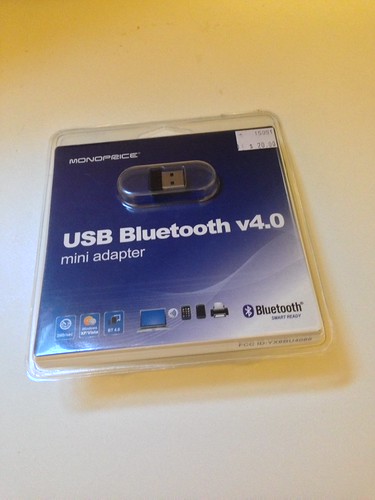
<p>This came in for me last week, so I hope to be able to use create a Node.js-based iBeacon in my house using <a href="https://github.com/sandeepmistry/node-bleacon">Bleacon</a> and <a href="https://github.com/mschmulen/tracking-bluetooth-ibeacons-with-node">some instructions</a> using <a href="https://itunes.apple.com/us/app/estimote-virtual-beacon/id686915066">Estimote</a>. So far I’m unable to install Bleacon because, I believe, I insist on using the latest available binary for Node.js for Raspberry Pi.</p>

<p>At least the hardware works. It’s just the Node module failing to install. Getting software to work has always been easier than getting hardware to work, so I will persist.</p>]]></content><author><name></name></author><summary type="html"><![CDATA[]]></summary><media:thumbnail xmlns:media="http://search.yahoo.com/mrss/" url="https://farm4.staticflickr.com/3737/13504747523_d49d9c9a4e.jpg" /><media:content medium="image" url="https://farm4.staticflickr.com/3737/13504747523_d49d9c9a4e.jpg" xmlns:media="http://search.yahoo.com/mrss/" /></entry><entry><title type="html">Shared Folder</title><link href="https://raspberry.justagwailo.com/2014/04/03/shared-folder" rel="alternate" type="text/html" title="Shared Folder" /><published>2014-04-03T00:00:00-04:00</published><updated>2014-04-03T00:00:00-04:00</updated><id>https://raspberry.justagwailo.com/2014/04/03/shared-folder</id><content type="html" xml:base="https://raspberry.justagwailo.com/2014/04/03/shared-folder"><![CDATA[<p><img src="/assets/images/ix-shared-folder.png" style="float: left; padding-right: 5px; padding-bottom: 5px;" alt="Finder Shared sidebar with my Raspberry Pi 'ix' listed" /></p>

<p>Reading the chapter on sharing folders from other computers from <a href="http://www.packtpub.com/raspberry-pi-networking-cookbook/book"><em>Raspberry Pi Networking Cookbook</em></a> this morning, I decided to do the opposite: share my Raspberry Pi over my local network with my Mac. <a href="http://blog.jachobsen.com/2013/04/29/browse-raspberry-pi-in-osx-finder-via-samba/">Henrik Jachobsen has some easy-to-follow instructions</a>, and there it is, my Raspberry Pi! (I named it <a href="http://en.wikipedia.org/wiki/Ford_Prefect_(character)">Ix as an homage to Ford Prefect of <em>The Hitchhiker’s Guide to the Galaxy</em></a>.) I followed the instructions exactly, except that I used Emacs, of course, and added Samba to the list of software I’ve installed on my Raspberry Pi. Did I mention that I have <a href="/software">a list of software I’ve installed on my Raspberry Pi</a>?</p>]]></content><author><name></name></author><summary type="html"><![CDATA[]]></summary></entry><entry><title type="html">Successful Wi-Fi Dongle Connection</title><link href="https://raspberry.justagwailo.com/2014/03/13/successful-wi-fi-dongle-connection" rel="alternate" type="text/html" title="Successful Wi-Fi Dongle Connection" /><published>2014-03-13T23:08:52-04:00</published><updated>2014-03-13T23:08:52-04:00</updated><id>https://raspberry.justagwailo.com/2014/03/13/successful-wi-fi-dongle-connection</id><content type="html" xml:base="https://raspberry.justagwailo.com/2014/03/13/successful-wi-fi-dongle-connection"><![CDATA[<p>After a few days rest and looking again at the open tab on my iPad, I decided to give the WiFi dongle another go. A more sober reading of <a href="http://milkandtang.com/blog/2013/08/27/getting-wifi-on-a-headless-raspberry-pi/">Nathan Wittstock’s instructions on getting WiFi on a headless Raspberry Pi</a> led to moving some lines in <code>/etc/network/interfaces</code> around and commenting out some lines in <code>/etc/wpa\_supplicant/wpa\_supplicant.conf</code>. After a reboot, I connected to the internal IP address I associated with the WiFi dongle and voila! I’m connected. Taking out the Ethernet cable confirms it. That means being able to take the Raspberry Pi unit away from the bedroom (where the router lives) and into the office to hack away more efficiently on getting the Bluetooth dongle working.</p>]]></content><author><name></name></author><summary type="html"><![CDATA[After a few days rest and looking again at the open tab on my iPad, I decided to give the WiFi dongle another go. A more sober reading of Nathan Wittstock’s instructions on getting WiFi on a headless Raspberry Pi led to moving some lines in /etc/network/interfaces around and commenting out some lines in /etc/wpa\_supplicant/wpa\_supplicant.conf. After a reboot, I connected to the internal IP address I associated with the WiFi dongle and voila! I’m connected. Taking out the Ethernet cable confirms it. That means being able to take the Raspberry Pi unit away from the bedroom (where the router lives) and into the office to hack away more efficiently on getting the Bluetooth dongle working.]]></summary></entry><entry><title type="html">Failed Dongle Connections</title><link href="https://raspberry.justagwailo.com/2014/03/08/failed-dongle-connections" rel="alternate" type="text/html" title="Failed Dongle Connections" /><published>2014-03-08T00:00:00-05:00</published><updated>2014-03-08T00:00:00-05:00</updated><id>https://raspberry.justagwailo.com/2014/03/08/failed-dongle-connections</id><content type="html" xml:base="https://raspberry.justagwailo.com/2014/03/08/failed-dongle-connections"><![CDATA[<blockquote class="twitter-tweet" lang="en"><p>These two USB dongles should open up some possibilities for my Raspberry Pi. <a href="http://t.co/qzTl5y6Ncy">pic.twitter.com/qzTl5y6Ncy</a></p>&mdash; Richard Eriksson (@sillygwailo) <a href="https://twitter.com/sillygwailo/statuses/442532428045758464">March 9, 2014</a></blockquote>
<script async="" src="//platform.twitter.com/widgets.js" charset="utf-8"></script>

<p>No luck tonight on getting my Bluetooth and Wi-Fi USB dongles working. Despite <a href="http://developer.radiusnetworks.com/2013/10/09/how-to-make-an-ibeacon-out-of-a-raspberry-pi.html">the excellent instructions by James Nebeker and David G. Young on getting the software setup</a>, my dongle does not support Bluetooth LE to begin with. If you’re getting</p>

<p><code>Can't set advertise mode on hci0: Connection timed out (110)</code></p>

<p>…after you’ve arrived at typing in</p>

<p><code>hciconfig hci0 leadv 3</code></p>

<p>…the best explanation I can offer is that your Bluetooth dongle doesn’t support LE.</p>

<p>The end goal here is to make a beacon where stuff happens (the opening up of possibilities) based on my proximity to my Raspberry Pi, as determined by my iPhone 5. The following look useful once I get the proper dongle:</p>

<ul>
  <li><a href="https://github.com/sandeepmistry/node-bleacon">A node.js library for creating, discovering, and configuring iBeacons</a></li>
  <li><a href="https://github.com/mschmulen/tracking-bluetooth-ibeacons-with-node">Tracking mobile BlueTooth LE iBeacon engagements with Node.js</a></li>
</ul>

<p>Once I get a dongle that’s compatible with LE, that is. At least I won’t have to do the Bluez software compilation again.</p>

<p>Connecting the Wi-Fi dongle was met with the same result: a failure to connect. On the plus side, some learning about how I can setup my network, and a <code>apt-get update</code> and a <code>apt-get upgrade</code> to get the latest and greatest of everything.</p>

<p>I found the following links helpful:</p>

<ul>
  <li><a href="http://www.howtogeek.com/167425/how-to-setup-wi-fi-on-your-raspberry-pi-via-the-command-line/">How to Setup Wi-Fi On Your Raspberry Pi via the Command Line</a></li>
  <li><a href="http://milkandtang.com/blog/2013/08/27/getting-wifi-on-a-headless-raspberry-pi/">Getting WiFi on a Headless Raspberry Pi</a>.</li>
  <li><a href="http://raspberrypi.stackexchange.com/questions/11631/wifi-setup-for-multiple-networks">Raspberry Pi Stack Exchange question on the subject</a></li>
  <li><a href="http://www.raspberrypi.org/forum/viewtopic.php?f=28&amp;t=52236">Realtek wifi 8188CUS doesn’t “just work”</a></li>
</ul>

<p>I’m grateful to my past self for properly setting up the Ethernet connection with a static IP address, an entry in <code>~/.ssh/config</code> on my laptop, and SSH keys. This ensured that any mistakes made to my networking settings would be confined to the <code>wlan0</code> section and not lock me out of my Pi.</p>]]></content><author><name></name></author><summary type="html"><![CDATA[These two USB dongles should open up some possibilities for my Raspberry Pi. pic.twitter.com/qzTl5y6Ncy&mdash; Richard Eriksson (@sillygwailo) March 9, 2014]]></summary></entry><entry><title type="html">Uncomplicated</title><link href="https://raspberry.justagwailo.com/2013/10/02/uncomplicated" rel="alternate" type="text/html" title="Uncomplicated" /><published>2013-10-02T00:00:00-04:00</published><updated>2013-10-02T00:00:00-04:00</updated><id>https://raspberry.justagwailo.com/2013/10/02/uncomplicated</id><content type="html" xml:base="https://raspberry.justagwailo.com/2013/10/02/uncomplicated"><![CDATA[<p>Early this morning, unable to sleep, I finished reading <a href="http://www.packtpub.com/raspberry-pi-networking-cookbook/book"><em>Raspberry Pi Networking Cookbook</em></a>. Late last week, I installed <a href="https://en.wikipedia.org/wiki/Uncomplicated_Firewall">the Uncomplicated Firewall</a> via the command line, doubly making sure that SSH was enabled. Otherwise making I wouldn’t be able to access it through the network and would have to set up the thing again. I also installed <code>whois</code> to do quick checks if a domains is available from my phone if need be without having to resort to SSHing into my California-based VPS. The final recipe of the book has us making the Raspberry Pi a wireless access point, and lacking the hardware necessary, I’m putting that one off. <a href="/software">The list of software installed</a> is up to date, and I plan on adding a page listing the hardware connected to my unit.</p>]]></content><author><name></name></author><summary type="html"><![CDATA[Early this morning, unable to sleep, I finished reading Raspberry Pi Networking Cookbook. Late last week, I installed the Uncomplicated Firewall via the command line, doubly making sure that SSH was enabled. Otherwise making I wouldn’t be able to access it through the network and would have to set up the thing again. I also installed whois to do quick checks if a domains is available from my phone if need be without having to resort to SSHing into my California-based VPS. The final recipe of the book has us making the Raspberry Pi a wireless access point, and lacking the hardware necessary, I’m putting that one off. The list of software installed is up to date, and I plan on adding a page listing the hardware connected to my unit.]]></summary></entry><entry><title type="html">Blinky Light</title><link href="https://raspberry.justagwailo.com/2013/09/20/blinky-light" rel="alternate" type="text/html" title="Blinky Light" /><published>2013-09-20T00:00:00-04:00</published><updated>2013-09-20T00:00:00-04:00</updated><id>https://raspberry.justagwailo.com/2013/09/20/blinky-light</id><content type="html" xml:base="https://raspberry.justagwailo.com/2013/09/20/blinky-light"><![CDATA[<p>Along with <a href="http://arduino.justagwailo.com/">my Arduino mission accomplishments</a>, I wanted to dust off the Raspberry Pi that had been sitting unused for over a year. After much yak shaving to get the OS installed, I set it aside while trying to figure out a way to see anything. Recently, a friend <a href="https://twitter.com/beanjammin/status/376603658713964544">tipped me off</a> about a Raspberry Pi getting started night at the Vancouver Hack Space.</p>

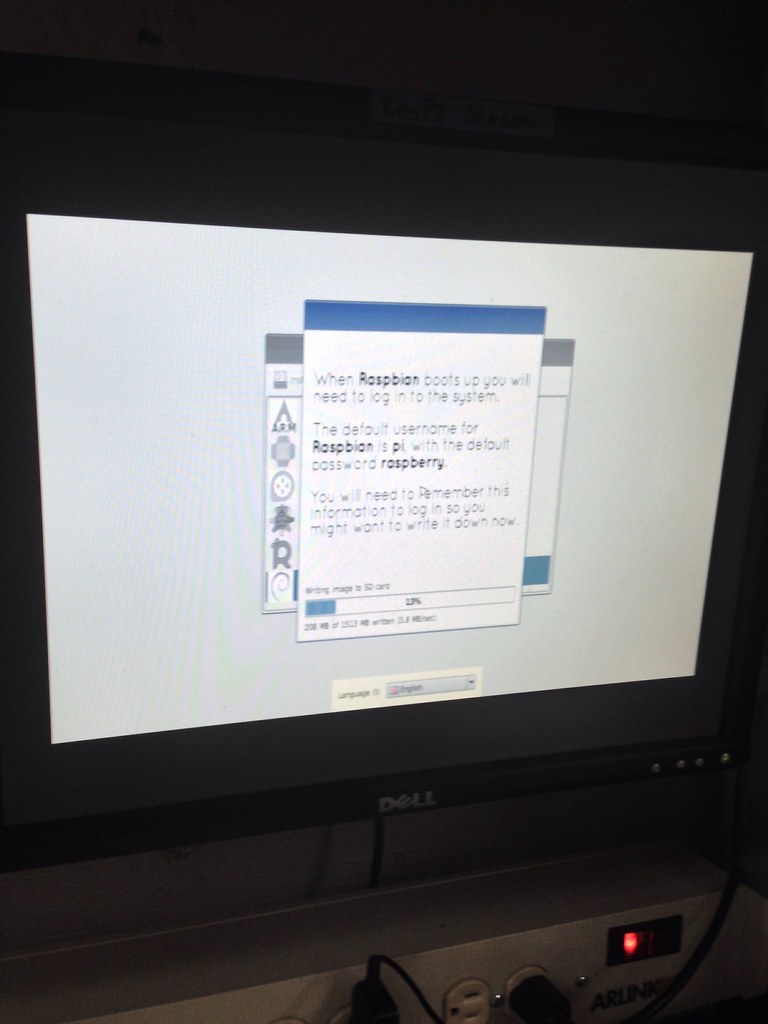
<p>It was a fun atmosphere. In <a href="http://vancouver.hackspace.ca/wp/2013/09/07/getting-started-with-raspberry-pi-wednesday-sep-11th-2013/">the introductory blog post for the event</a>, the hackspacers recommended that we might need our own keyboard and mouse. Not having a USB keyboard, I secured one from Vancouver’s Free Geek (as well as a composite wire), then proceeded to the hackspace (with a detour to Hawker’s Delight for dinner) to get setup. I did not need the keyboard, as there was a keyboard at the station to get the Raspberry Pi’s OS initially setup and to determine the IP address assigned to it on the network.</p>

<p><a href="http://www.flickr.com/photos/sillygwailo/9770051664/" title="Raspberry Pi OS welcome"><img src="http://farm6.staticflickr.com/5474/9770051664_d775eb1c3b_b.jpg" style="width: 100%" alt="Raspberry Pi OS welcome screen" /></a></p>

<p><a href="http://www.flickr.com/photos/sillygwailo/9770053656/" title="Raspberry Pi"><img src="http://farm8.staticflickr.com/7296/9770053656_2250fc717a_b.jpg" style="width: 100%" alt="Raspberry Pi" /></a></p>

<p>Once hooked back up to the network and headless (not hooked up to a monitor), I was able to SSH through the Vancouver Hack Space’s network to the Pi in and download the WebIDE software. Borrowing some lead wires and an LED, and after some initial confusion about where I was to get the Python code responsible, I was able to successfully blink an LED light.</p>

<div class="instagram-embed-container"><iframe src="//instagram.com/p/eJYSrlO9Sk/embed/"></iframe></div>

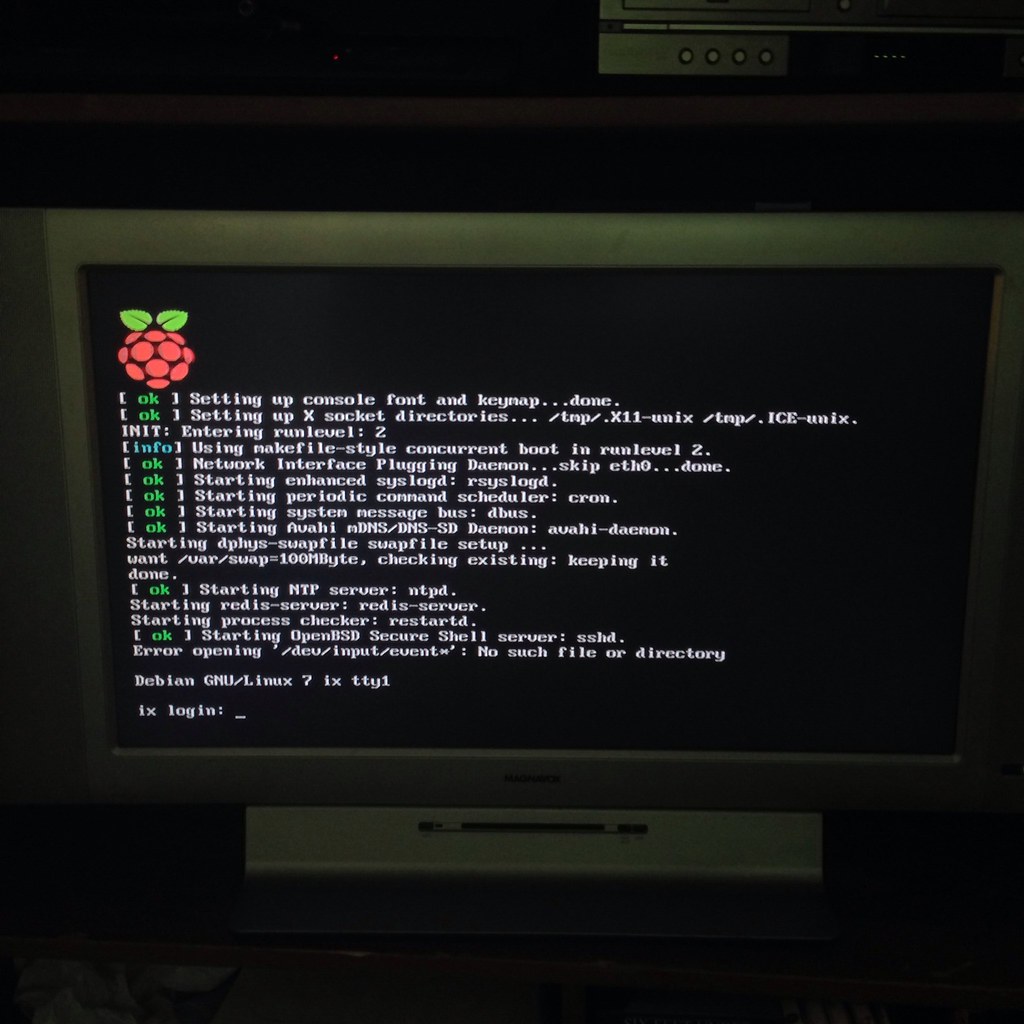
<p>The next day, I hooked the Raspberry Pi to my TV at home (with the aforementioned composite wire). And it booted!</p>

<p><a href="http://www.flickr.com/photos/sillygwailo/9769850332/" title="Raspberry Pi booted on my TV"><img src="http://farm8.staticflickr.com/7366/9769850332_57891c023a_b.jpg" style="width: 100%" alt="Raspberry Pi booted on my TV" /></a></p>

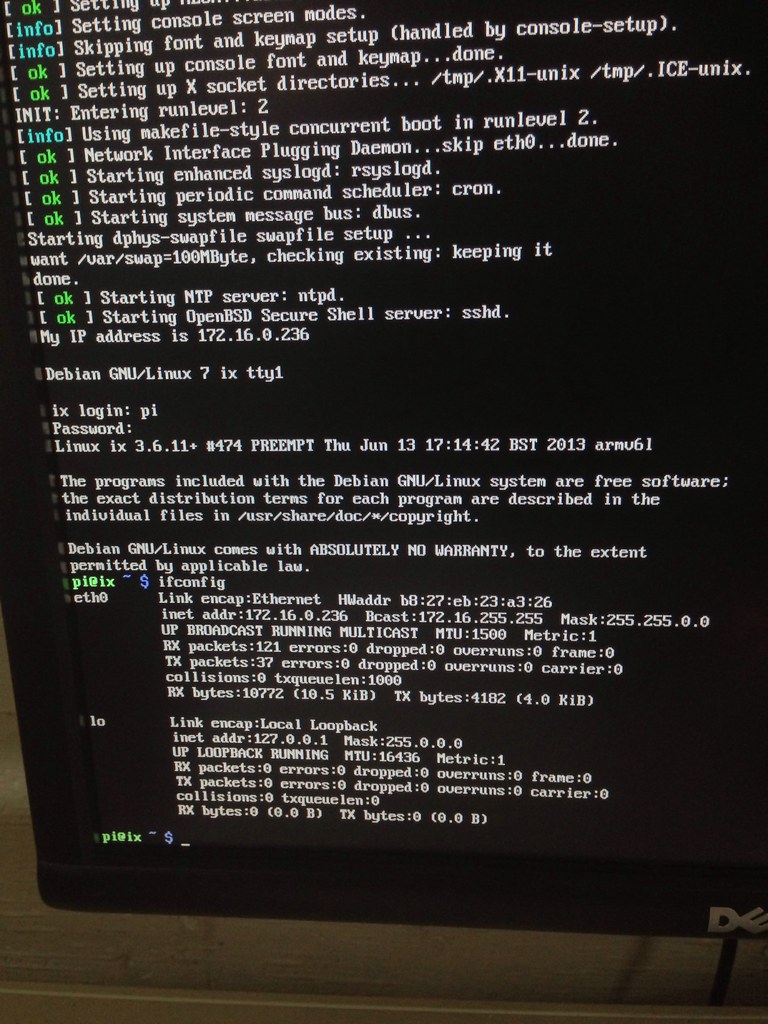
<p>With a long ethernet cable, I hooked the Pi to my local network (which is nothing more than an Airport Extreme router). After using the same method as at the hackspace to determine the IP address on the local network, I unhooked the TV and the long wire, and hooked up a shorter Ethernet cable to the router. Following that, I was able to SSH into the Pi via my laptop as well as my iPad. Copying over some SSH keys and adding a section in ~/.ssh/config I’m able to login without a password.</p>

<p>Ideas for what’s next:</p>

<ul>
  <li>Punch a hole in the firewall so that the Pi can accept inbound connections from the Internet, or probably just my VPS located in California</li>
  <li>Create a daemon that responds to pings from my VPS every time a specified action occurs.
    <ul>
      <li>My first idea for the “specified action” is a unique visit to my website. (I get few enough visits that there should be measurable time between the action.)</li>
    </ul>
  </li>
  <li>Write code on the Pi to light up an LED when that action occurs. Bonus points for fade in/fade out.</li>
  <li>Have the Raspberry Pi interact wirelessly, either with my home network or directly to my iPhone. Products like <a href="http://www.amazon.com/PLANEX-Bluetooth3-0-IEEE802-11n-corresponding-BT-Micro3H2X/dp/B00644FV14">a combo Bluetooth/Wi-fi adatpter</a> look interesting.</li>
</ul>

<p>I have two short books that should also dislodge some ideas from my brain: <a href="http://www.packtpub.com/raspberry-pi-networking-cookbook/book"><i>Raspberry Pi Networking Cookbook</i></a> by Rick Golden and the <a href="http://shop.oreilly.com/product/0636920023371.do"><i>Getting Started with Raspberry Pi</i></a> by Matt Richardson and Shawn Wallace. Like with my Arduino missions, I’ll stick closely to the book at first, jotting down plans for more adventurous configurations as I go along.</p>]]></content><author><name></name></author><summary type="html"><![CDATA[Along with my Arduino mission accomplishments, I wanted to dust off the Raspberry Pi that had been sitting unused for over a year. After much yak shaving to get the OS installed, I set it aside while trying to figure out a way to see anything. Recently, a friend tipped me off about a Raspberry Pi getting started night at the Vancouver Hack Space.]]></summary></entry></feed>